You are in the queue at the pharmacy and remember that the car insurance renews on Friday. If that thought does not reach your task list in the next few seconds, it comes back on Saturday.
Most Notion task setups do not fail at planning. The database, the views and the filters work well at the desk. What fails is adding one row from the phone while you are doing something else.
Why adding a task in the Notion app feels slow
In the Notion app, a new task means: open the app, wait for the workspace, find the Tasks database, tap New, type the title, then open each property you want to set. On a good connection with both hands free, that is fine. In a lift, on the U-Bahn or with a shopping bag in one hand, it is where tasks get lost.
Notion is good at everything that happens to a task afterwards: a board by status, a calendar by due date, a view filtered to today. The gap is the first step, getting the row in.
Two ways in, depending on the task
This page is only about that capture step. Neither app shows your task list or ticks tasks off. Reviewing, reordering and checking things off stay in Notion, where your views already are.
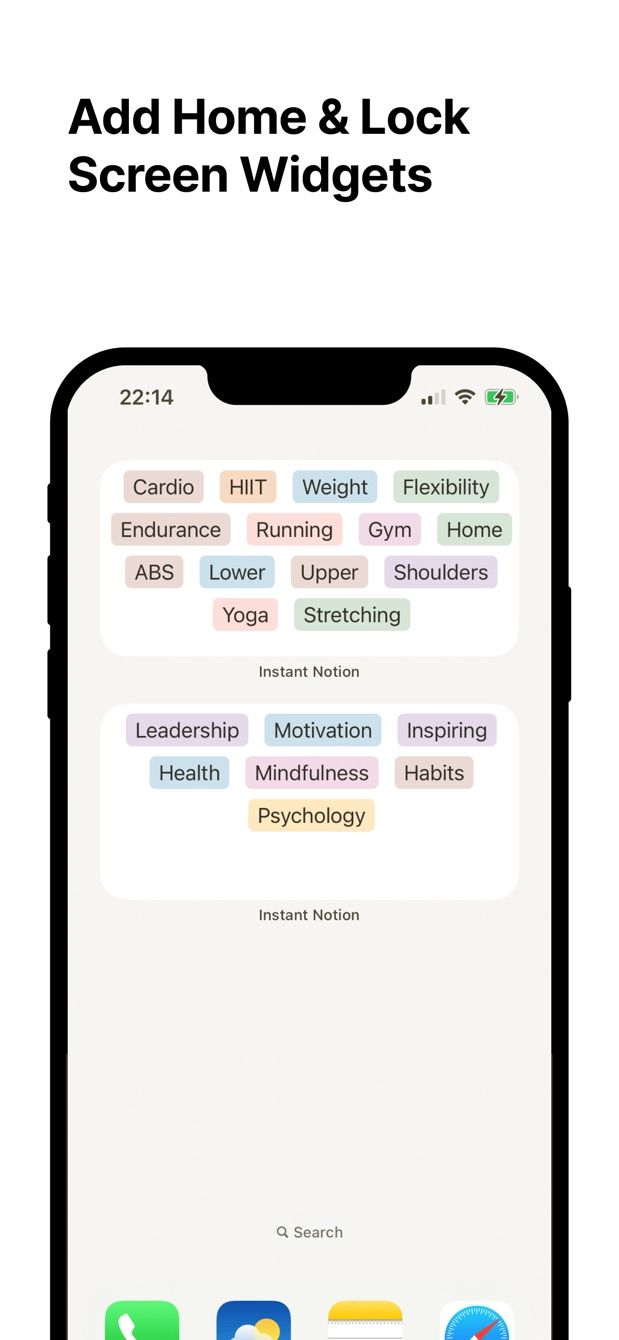
A one-line task: Instant Note for Notion. The app opens on a text field. Type “Renew car insurance”, tap the tag Home, save. The row lands in your Tasks database with the tag set. Tags come from the select and multi-select properties of the database, so a Project or Area select works as your tag list. With the Lock Screen widget on iPhone or a Home Screen widget, the text field is one tap away. Most tasks need nothing more than a title and a project.
A task with a date and a status: Fast Actions for Notion. Here you build an action once: a small form mapped to the Tasks database, with only the fields you choose. A good task action has the title, Due (a date, today by default), Status, Priority (a select) and perhaps a Project relation. After that, each task is: tap the action, type the title, change the date if it is not today, save. Status and priority are already filled by their defaults.
You can point several actions at the same database. “Task today” with everything preset, and “Task with details” with the date picker, a priority and a text field for notes. Both write rows into the same Tasks database.
Both apps sign in with Notion’s own authorisation and write straight to the Notion API. If you save with no signal, the task waits on the phone and is sent when you are back online. The offline notes guide explains how that queue works.
Set up the Tasks database first
If you already use Notion’s task template, you are mostly done. Otherwise create a full-page database called Tasks with:
- Name (title): the task itself
- Project: a select (Instant Note uses it as tags) or a relation to a Projects database (for Fast Actions)
- Due: a date
- Status: Not started, In progress, Done
- Priority: a select with High, Normal, Low
Add a view filtered to “Status is not Done” and sorted by Due. That view is where you work. The phone only feeds it.
How to do it today
With Instant Note:
- Sign in with Notion and choose your Tasks database.
- Check that the Project select has your projects as options. With Pro you can also create new tags in the app without opening Notion.
- Add the Lock Screen widget (iPhone) or a Home Screen widget (iPhone and Android).
- When a task comes up: tap the widget, type it, tap the project, save.
With Fast Actions:
- Sign in with Notion and create a new action. Choose the Tasks database.
- Add the fields: title, Due, Status, Priority, Project. Leave out anything you would only fill in at the desk.
- Set defaults: Due = today, Status = Not started, Priority = Normal.
- Save the action. Next time a task comes up: tap the action, type the title, save. Touch the date or priority only when the default is wrong.
- Later, open your Tasks view in Notion. The rows are there with date and status set.
Fast Actions includes one capture per day on the free plan, which is enough to try the form. Pro removes the limit.
I keep both on my phone: Instant Note for the “remember to” lines, and a Fast Actions form for anything with a date. If tasks often come out of meetings, the meeting notes guide has an action-item form. If you prefer one inbox that you sort once a week, read the Notion inbox guide.
Missing something?
If your workflow needs something the app does not do yet, write to me at [email protected]. I read every message, and requests like yours decide what gets built next.
Get Instant Note · Get Fast Actions
Both apps are free to start on iOS and Android.
Instant Note for Notion


Fast Actions for Notion