Since iOS 16 the Lock Screen has had a row of small widgets under the clock. Since iOS 14 the Home Screen has had bigger ones. Both are the shortest distance between a locked phone and an app. For Notion users the question is what, if anything, you can put there.
This page covers the widgets that exist in the Notion app, the ones in Instant Note for Notion, and how to set each up on iOS 16 through iOS 27.
Which widgets does the Notion app have on iPhone?
Four kinds, per Notion’s help centre: Page, Favorites, Recents and AI shortcuts. The first three open a page you choose or a list of pages. The fourth opens Notion AI’s chat, camera or voice features. All of them are Home Screen widgets. Notion does not document a Lock Screen widget, and none of its widgets creates a row in a database.
They are useful if you keep one page open all day, like a weekly plan. They are not capture tools. A 2026 reviewer replaced the camera button on their Lock Screen with a Notion widget, which is a nice idea, but what it opens is still a page, after the usual loading screen.
What is the Instant Note Lock Screen widget?
A small rectangle or circle under the clock. Tap it, and the app opens straight into the text field. Type, tap a tag, save, and the note is a new row in your Notion database. If there is no signal, the note waits and is sent later.
It needs iOS 16 or newer. It works on the free plan. The tags come from a select or multi-select property in your database, so there is nothing to configure in the widget itself.
What do the Home Screen widgets add?
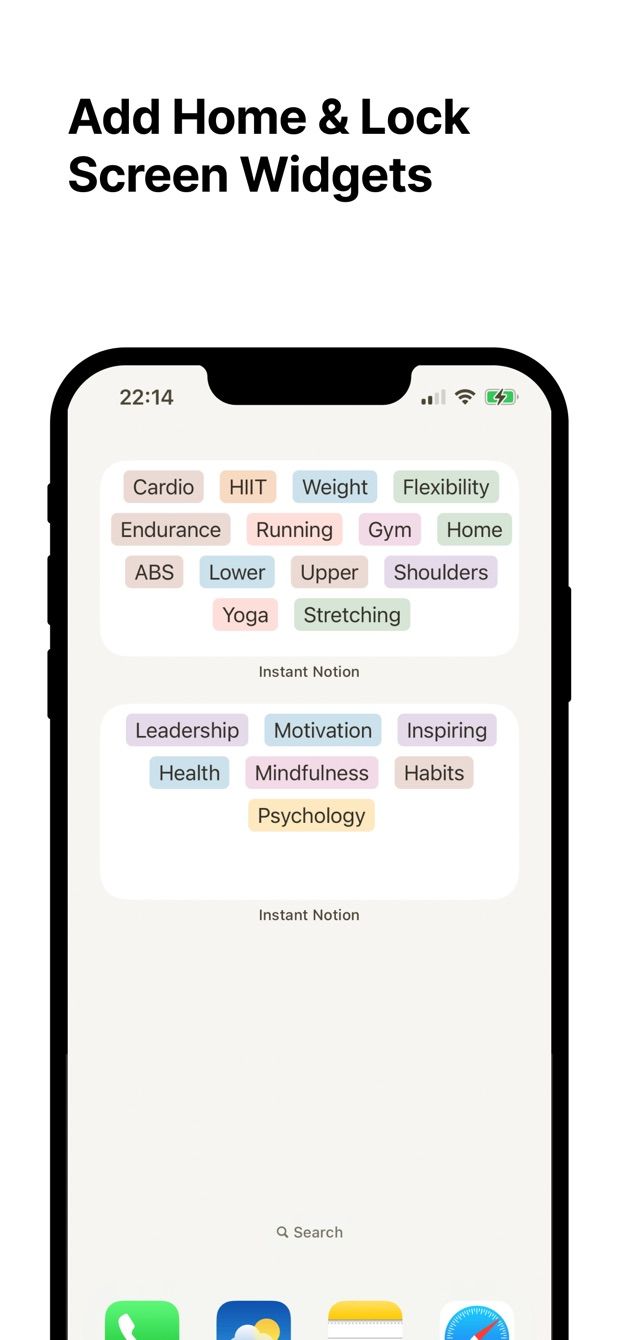
Home Screen widgets are part of the Pro plan. They show your tags from the database, so you tap the tag first and the note opens with that tag already set. If your database has Work, Home and Idea as tags, the widget is three buttons, and “Idea” is one tap plus the typing.
StandBy, the bedside mode iOS 17 added when the phone charges on its side, shows the same small Home Screen widgets. I have not built anything specific for StandBy. The small widget is simply available there, like any other small widget, and a tap opens the app the same way.
How to do it today
- Install Instant Note for Notion, sign in with Notion, pick the database that receives notes.
- Lock Screen: press and hold the Lock Screen, tap Customize, then Lock Screen. Tap the widget row under the clock, choose Instant Note, add the widget, tap Done.
- Home Screen: press and hold an empty area of the Home Screen, tap the plus button in the corner, search for Instant Note, pick a size, tap Add Widget. The tag widgets need Pro.
- Tap either widget. The text field has focus. Write, tag, save.
- If you keep several Notion databases, switching between them is a Pro feature and happens in the app, not in the widget.
Missing something?
If your workflow needs something the app does not do yet, write to me at [email protected]. I read every message, and requests like yours decide what gets built next.
Get Instant Note
Instant Note for Notion is free on iOS and Android. Pro adds widgets with your tags, multiple databases and the saved-notes list.