You are on the platform and the train is two minutes away. A sentence for the thing you are writing shows up in your head. By the time Notion has opened, found the right page and loaded the editor, the train is here and the sentence is gone.
That is the gap this page is about. Notion is where my notes live. It is not where the first version of them gets typed on a phone.
Why is quick capture in the Notion app slow?
Notion’s mobile app is a whole workspace. Opening it means a cold start, a loading screen, the sidebar, then finding the database and tapping New. On a good day that is five or six taps and a few seconds of spinners. On a bad day the app reloads halfway through.
App Store reviewers in 2026 keep coming back to the same two things: start-up time and lag while typing. Notion is working on a native editor, and that will help. But even a fast editor sits behind a sidebar and a page tree. For capture, the number of steps matters more than the speed of each step.
Notion’s own iPhone widgets open a page, your favourites or your recent pages. There is no Lock Screen widget that creates a database row.
What does capture from the Lock Screen look like?
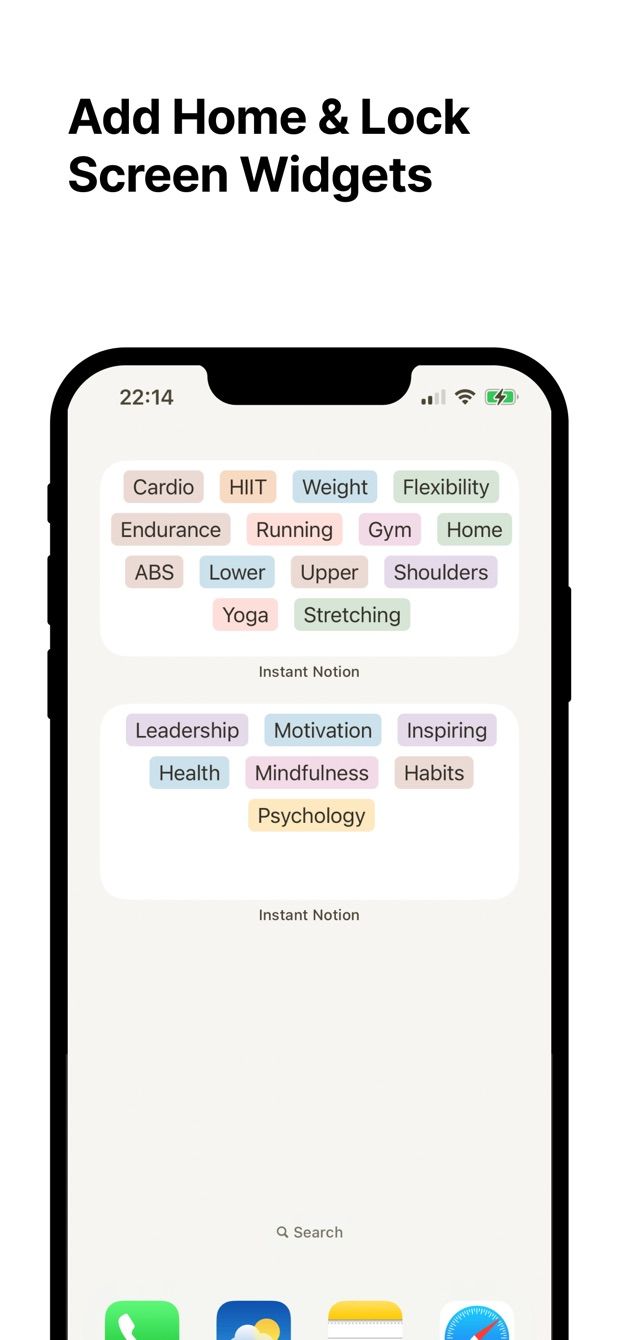
Instant Note for Notion is a small app that does one thing. It opens straight into a text field. You type, pick a tag or two, tap save. The note becomes a new row in the Notion database you chose during set-up.
Put its widget on the Lock Screen and the path is: raise the phone, tap the widget, type, save. No sidebar. No page tree. If the connection is bad, the note waits on the phone and goes out later.
The tags are not something the app invents. They are the options of a select or multi-select property in your database. So the note arrives already sorted the way your database is sorted.
How to do it today
- Install Instant Note for Notion and sign in with your Notion account. It uses Notion’s own authorisation screen. Pick the databases you want the app to see.
- Choose the database that will receive notes. A simple one works best: a title, a multi-select called Tags, and a Created time property that Notion fills in by itself.
- On the iPhone, press and hold the Lock Screen, tap Customize, then Lock Screen. Tap the widget area under the clock, find Instant Note and add the widget. Tap Done.
- Lock the phone. Tap the widget. The text field is already focused. Type the sentence, tap a tag, save.
- Open Notion later on the laptop. The row is there with the tag set.
Step 3 needs iOS 16 or newer. The first time there are more taps than that. After set-up, capture is a tap on the widget, a tap on a tag, a tap on save, and whatever you typed in between.
Missing something?
If your workflow needs something the app does not do yet, write to me at [email protected]. I read every message, and requests like yours decide what gets built next.
Get Instant Note
Instant Note for Notion is free on iOS and Android. Pro adds widgets with your tags, multiple databases and the saved-notes list.