The taxi receipt goes into your coat pocket. Three months later it is a grey slip of thermal paper and you cannot read the total. Or it is somewhere in a shoebox with forty others, and the person who needs it is your accountant, your employer or the shop that sold you a laptop with a two-year warranty.
The fix is boring and it works: photograph the receipt when you get it and put it, with the amount and date, in one Notion database. Here is the setup I use, and how to fill it from your phone in a few taps.
Receipts are records, not a budget
This page is about keeping proof. Freelancers keep receipts for their tax return. Employees keep them to get money back for a work trip. Everyone keeps the one for the washing machine in case it breaks.
That is a different job from tracking what you spend each month. If you want sums by category and a monthly view, see the Notion expense tracker guide. The two can share a database. Most people find a separate Receipts database easier to hand over to someone else.
Which receipts you have to keep, for how long, and whether a photo counts as the original depends on where you live and what you do. Ask your accountant or tax office. This setup only makes sure that, when they ask, you find the receipt in ten seconds instead of an afternoon.
What the Notion database looks like
A full-page database called Receipts:
| Property | Type | Notes |
|---|---|---|
| Name | Title | Shop or what it was: “Train to Hamburg” |
| Photo | Files & media | The receipt |
| Amount | Number | Decimals are fine |
| Date | Date | Date on the receipt |
| Category | Select | Travel, Equipment, Office, Meals, Home |
| Purpose | Select | Tax, Reimbursement, Warranty |
| Tax | Checkbox | Relevant for the tax return |
| Note | Text | Who you were with, which client |
Purpose and Tax do different things. Purpose says why you kept it. The checkbox is what you filter on in January. A laptop receipt can be both Warranty and Tax.
Can the app read the amount from the photo?
No. There is no OCR in Fast Actions for Notion. It does not read the shop, the date or the total from the picture. You type the amount.
In practice that is one number. The date defaults to today, the category can have a default, and the photo is the evidence. If the amount in Notion is ever wrong, the picture next to it shows what it should be.
The action in Fast Actions
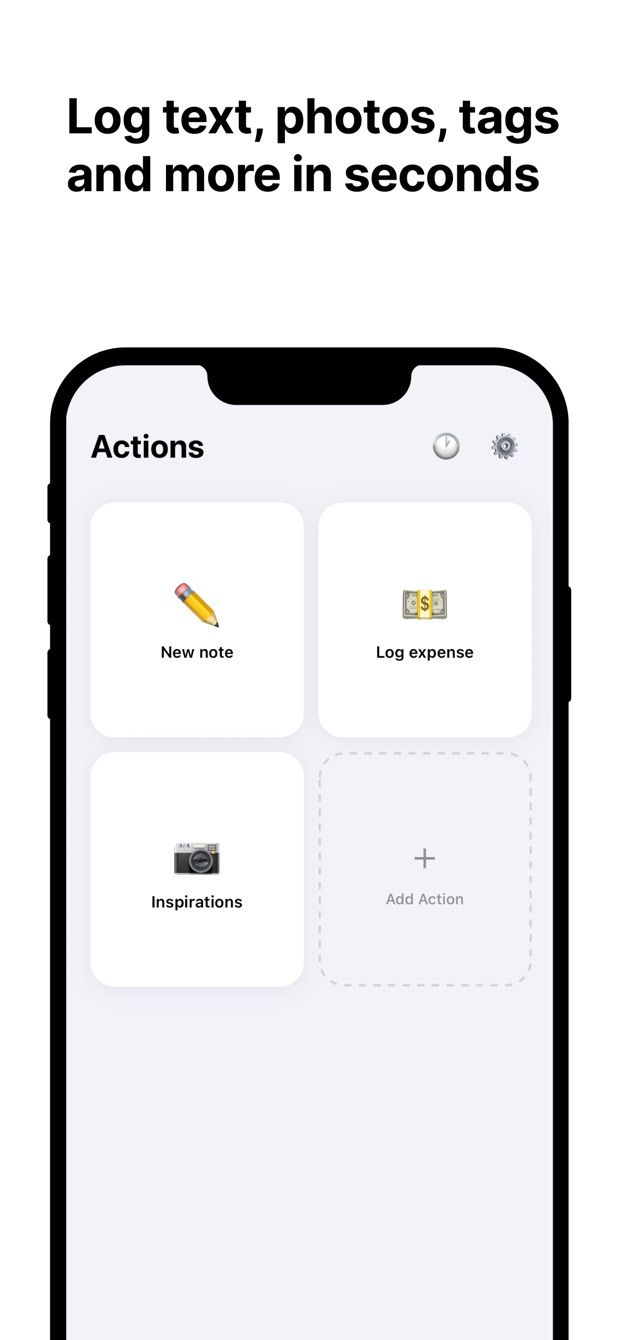
Create an action called Receipt and point it at the Receipts database:
- Photo: from the camera, or from the library if you already took the picture with the Camera app.
- Amount: number, empty. The one thing you always type.
- Date: default today. The calendar picker is there for last week’s hotel bill.
- Category: select, default the one you use most.
- Purpose: select, default Tax.
- Tax: checkbox, default on.
- Name and Note: text, optional.
Then add a second action on the same database called Warranty. Purpose defaults to Warranty, the Tax box is off, and there is no category. Several actions on one database with different defaults is normal in Fast Actions, so each kind of receipt starts with the right fields already set.
Large photos are downscaled automatically before upload. Hold the phone close and flat over the receipt so the numbers stay readable after that.
How to do it today
- In Notion, create the Receipts database with the properties above. Add a table view filtered to Tax is checked and grouped by month.
- Install Fast Actions for Notion on your iPhone or Android phone. Sign in with your Notion account and give the app access to Receipts.
- Create the Receipt action with the fields and defaults above. Save it.
- Create the Warranty action the same way, with its own defaults.
- Next time you pay: tap Receipt, take the photo, type the amount, save. File the paper the way you always do.
- At the end of the year, open the filtered view. Share it with your accountant or use Notion’s export.
At an airport with no signal, the entry waits in the queue with the photo attached and uploads when you are back online. Each entry shows its status, so you can see which receipts are already in Notion. The details are in the offline guide. For photos of other things, such as whiteboards and serial numbers, see adding photos to a Notion database.
The free plan includes one capture per day. Pro removes the limit, which matters on a work trip with five receipts a day.
Missing something?
If your workflow needs something the app does not do yet, write to me at [email protected]. I read every message, and requests like yours decide what gets built next.
Get Fast Actions
Fast Actions for Notion is free for one capture a day on iOS and Android. Pro removes the limit.