The meeting is over and the whiteboard is about to be wiped. You want the photo in the Notion database where the project lives, not in the camera roll with four thousand other pictures. In the Notion app that is: open, wait, find the database, new row, tap the Files property, add a file, take the photo, back out. It works. It is too long for a whiteboard about to be erased.
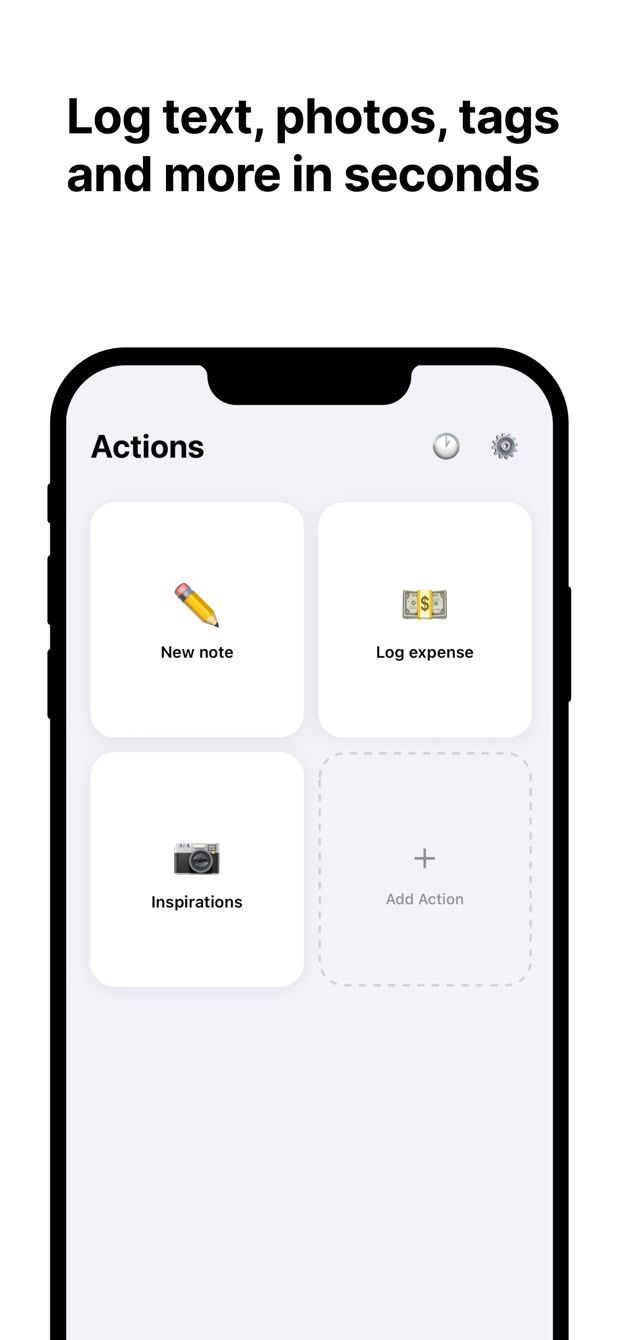
Fast Actions for Notion does the same thing in one action: full-screen camera, photo, save. The picture lands in a Files property of a new row, on iPhone and on Android. Here is how to set it up.
What the Notion database looks like
The photo needs a Files & media property to land in. Everything else is up to you. This is a general “Snapshots” database for anything that is a picture first:
| Property | Type | Notes |
|---|---|---|
| Name | Title | Optional, a few words |
| Photo | Files & media | Where the picture goes |
| Kind | Select | Receipt, Whiteboard, Label, Shelf, Document |
| Date | Date | When it was taken |
| Project | Relation | Optional link to a projects database |
| Note | Text | Optional |
You do not need a new database. If your Projects or Expenses database already has a Files property, point the action there instead. The photo is just a field.
The action in Fast Actions
An action called Whiteboard, on Snapshots:
- Photo: camera. The app opens a full-screen camera, you take the picture, and it goes into the Photo property.
- Kind: default Whiteboard.
- Date: default today.
- Project: relation, pick the project.
- Name and Note: text, empty, skip them if you are in a hurry.
A second action, Receipt, has Kind defaulting to Receipt. A third, Label, is Photo only. Several actions on one database with different fields is normal in Fast Actions, and for photos it is the whole point: the Kind is preset, so the camera is the only thing you touch.
Large photos are downscaled automatically before upload, so a row with a receipt does not carry a twelve-megapixel file.
How to do it today
- In Notion, add a Files & media property to the database you want the photos in, or create the Snapshots database above.
- Install Fast Actions for Notion. Sign in with your Notion account and give the app access to that database.
- Create an action. Add the photo field with the camera as the source, and whatever else you want preset.
- Next time the whiteboard is about to be wiped: tap the action, take the photo, save.
- Open the row in Notion. The photo is in the property, viewable in the gallery view if you set one up with Photo as the card preview.
Underground car park, no signal: the entry waits in the queue with the photo attached and uploads when you are back online. Its status is shown next to it, so you know when it is in Notion.
Missing something?
If your workflow needs something the app does not do yet, write to me at [email protected]. I read every message, and requests like yours decide what gets built next.
Get Fast Actions
Fast Actions for Notion is free for one capture a day on iOS and Android. Pro removes the limit.