The receipt is in your hand, the card is back in your wallet, and the Notion app is still on its loading screen. By the time the database opens, the phone is back in your pocket. Most expense trackers in Notion die this way. The template is fine. The entry is the problem.
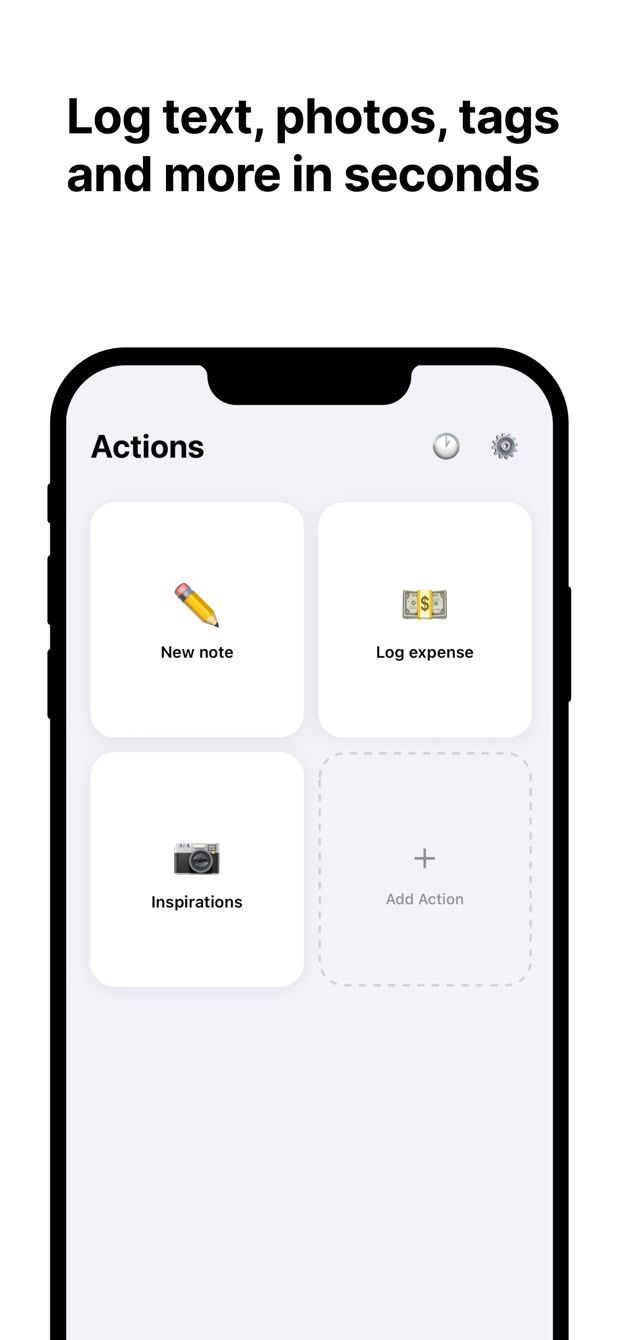
I keep my own expenses in Notion. The spreadsheet part, sums by month and by category, is what Notion is good at. The part that never worked was typing the row at the till. That is why the expense action was one of the first things I set up in Fast Actions for Notion: a small form on the phone that writes one row into the Expenses database.
What the Notion database looks like
Create a full-page database called Expenses. These properties are enough:
| Property | Type | Notes |
|---|---|---|
| Name | Title | What you bought: “Lunch”, “Train ticket” |
| Amount | Number | Decimals are fine |
| Category | Select | Food, Transport, Home, Health, Fun |
| Date | Date | When you paid |
| Receipt | Files & media | The photo |
| Note | Text | Optional |
Keep it short. Every extra property is one more field to fill while someone waits behind you.
Totals live in Notion. Turn on the Sum calculation under the Amount column, or add a board view grouped by Category. For monthly totals, add a formula property called Month with formatDate(prop("Date"), "YYYY-MM") and group a table by it. Do this once on the desktop.
The action in Fast Actions
Open Fast Actions, create an action and point it at Expenses. Choose these fields:
- Amount: number. Leave it empty, it is the one thing you always type.
- Category: select. Set the default to the category you use most.
- Date: defaults to today. A calendar is there when you enter yesterday’s taxi.
- Receipt: photo, from the camera.
- Name: text. It can stay empty; the category and amount say enough.
Several actions can point at the same database with different fields: a full “Expense” action, and a “Coffee” action where Amount and Category are preset and there is no photo field. That one is two taps: open, save.
How to do it today
- In Notion, create the Expenses database with the properties above. Add the Month formula and the Sum calculation while you are on the desktop.
- Install Fast Actions for Notion on your iPhone or Android phone. Sign in with your Notion account and give it access to the Expenses database. The sign-in is the official Notion authorisation; entries go straight to the Notion API.
- Create an action. Pick Expenses, add Amount, Category, Date and Receipt. Set the default category.
- Save the action. Next time you pay for something: tap the action, type the amount, take the photo of the receipt, save.
- Open Notion later. The row is there, with the photo in the Receipt property and the monthly total already updated.
If you are in the subway when you save, the entry waits on the phone and uploads when you are back online. Each entry shows its status, so you can see what has gone through.
Missing something?
If your workflow needs something the app does not do yet, write to me at [email protected]. I read every message, and requests like yours decide what gets built next.
Get Fast Actions
Fast Actions for Notion is free for one capture a day on iOS and Android. Pro removes the limit.