It is eleven at night, you are in bed, and the journal page in Notion is blank. A blank page asks “what do you want to write?”, and at eleven at night the honest answer is “nothing”. Most Notion journals stop within two weeks for this reason, not for lack of a template.
A form is easier than a page. When the entry is four short fields, mood, a couple of tags, one good thing, one line of text, you fill it in half asleep. This article shows the database and a Fast Actions for Notion action built for that.
What the Notion database looks like
Create a full-page database called Journal. One row per day.
| Property | Type | Notes |
|---|---|---|
| Entry | Title | One line, the headline of the day |
| Date | Date | The day the entry is about |
| Mood | Select | Good, Okay, Low (or 1 to 5) |
| Tags | Multi-select | Work, Family, Health, Travel, Friends |
| One good thing | Text | The prompt is the property name |
| Note | Text | Anything else |
| Photo | Files & media | Optional, one picture from the day |
The trick is in the property names. “One good thing” is a prompt. “What would I change” is a prompt. Put the questions you want to answer into the column names, and the form asks them for you every evening. You can change the prompts in Notion whenever they get stale.
Views come later. A calendar view by Date shows the gaps. A table filtered to Mood is Low, sorted by Date, is more useful than it sounds.
The action in Fast Actions
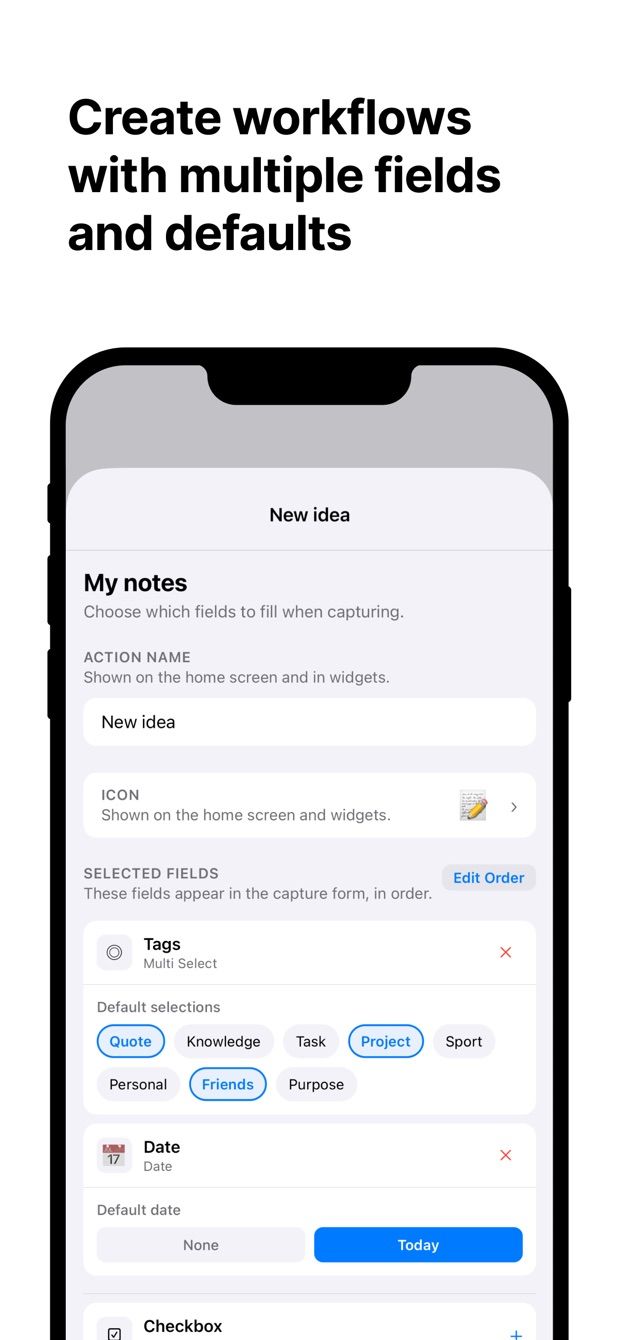
Create an action called Journal and point it at the Journal database. Fields:
- Date: defaults to today, so you never type it. If you write about yesterday the next morning, the calendar picker is one tap.
- Mood: select. Set the default to Okay, so a plain day is one tap less.
- Tags: multi-select, no default.
- One good thing: text.
- Note: text, empty.
- Photo: from the library, since the picture was usually taken earlier in the day.
Entry, the title, can stay out of the form if you prefer, or stay in for three or four words.
How to do it today
- In Notion, create the Journal database with the properties above. Rename the two text properties to the prompts you want to answer.
- Install Fast Actions for Notion, sign in with your Notion account and give the app access to Journal.
- Create the action. Add Date, Mood, Tags, One good thing, Note and Photo. Set the Mood default.
- Tonight: open Fast Actions, tap Journal, answer the fields, save. Two minutes.
- In Notion, add a calendar view. After a month you will see which days you skipped, and the Low days will have a line of context next to them.
If you write the entry on a flight or in a place with no signal, it waits on the phone and goes up when you are connected again.
Missing something?
If your workflow needs something the app does not do yet, write to me at [email protected]. I read every message, and requests like yours decide what gets built next.
Get Fast Actions
Fast Actions for Notion is free for one capture a day on iOS and Android. Pro removes the limit.