You want to write one line into Notion while standing in a queue, and the Notion app is still loading. So you search for a quick notes app for Notion and find several. They all say they are fast. That word does not help you choose.
This page is a checklist instead. Six questions that decide whether a capture app fits the way you use Notion. At the end I answer them for my own app, including what it does not do.
1. Does it open on a text field?
Count the taps from a locked phone to a blinking cursor. If the app first shows a list, a start screen or a page picker, every note pays for those extra seconds. The test takes ten seconds after you install it: tap the icon, see where you land.
2. Does it write to a database, with your tags?
Some apps append text to a single Notion page. That works as a scratchpad. It gets messy once you want to sort, filter or process notes later.
An app that creates a row in a Notion database gives every note its own page, date and properties. Then check where the tags come from. The good answer is: from the select or multi-select property you already have in that database. A tag you tap on the phone is then the same tag you filter by in Notion.
3. What happens with no signal?
Switch on flight mode and try to save a note. Does the app refuse, show an error, or keep the note and send it later? Notes happen in lifts, basements, trains and planes. An app that needs a connection to save loses exactly the notes you wanted to keep.
4. Is there a widget that opens it?
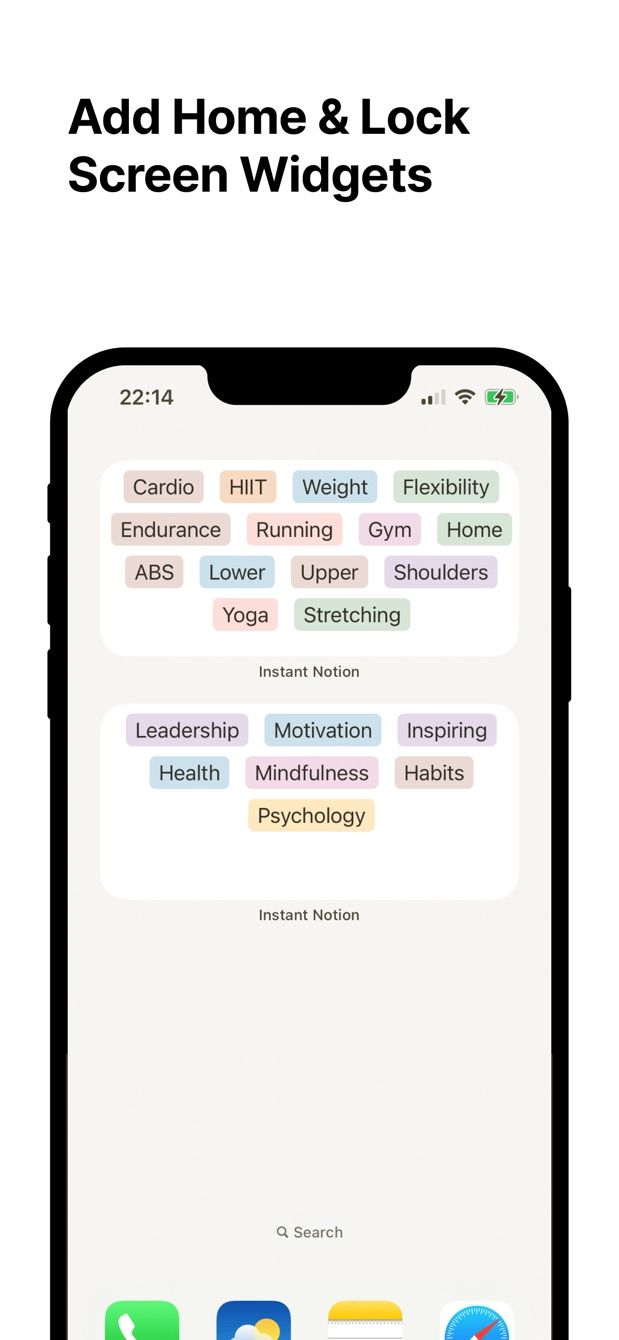
On iPhone, look for a Lock Screen widget (iOS 16 and later) and Home Screen widgets. On Android, a home screen widget. The widget is what turns “opens on a text field” into one tap instead of a hunt for the icon.
Check what the widget does. Many Notion widgets display rows from a database. That is useful, but it does not add a row.
5. Does it run on iPhone and Android?
If you might switch phones, or you share a database with someone on the other platform, an iPhone-only app is a dead end. Check when each version was last updated.
6. How does it connect to Notion?
The clean way is Notion’s own authorisation (OAuth). You sign in with Notion, choose which pages the app may see, and you can remove that access in Notion’s settings later. Then ask where notes travel. Best answer: straight from the phone to Notion, with no third-party server keeping a copy.
One more thing before you install: read what the free plan limits. A cap on databases or on widgets is fine, as long as you know it before you build a habit on top of it.
How Instant Note answers the six
I built Instant Note for Notion because I wanted a Notion inbox that opened as fast as the Camera app. Here is how it does on the list.
- It opens straight into the text field, keyboard up.
- Each note becomes a page (a row) in the Notion database you choose. Tags are the options of that database’s select or multi-select properties. Notes can hold text and images.
- Notes saved offline wait on the phone and go to Notion when you are back online. More in writing to Notion offline.
- A Lock Screen widget on iOS 16 and later, on the free plan. Home Screen widgets on iPhone and home screen widgets on Android. The iOS widget guide has the details.
- iPhone and Android, the same app on both.
- The official Notion sign-in. Notes go straight to Notion; no server of mine stores them.
Pro adds Home Screen widgets that show your tags, creating new tags without opening Notion, several databases with quick switching, and a “Saved notes” list you can read offline.
What it does not do: it is not a Notion editor. It does not open or change existing pages. It is an inbox. You write the note on the phone and sort it later in Notion. For editing on the go, use the Notion app.
How to do it today
- In Notion, create or pick a database for your notes. An “Inbox” with a Tags multi-select is enough. The inbox guide walks through the setup.
- Install Instant Note for Notion on your iPhone or Android phone. Sign in with Notion and give the app access to that database.
- Add the widget. iPhone: press and hold the Lock Screen, tap Customise, tap the widget area, choose Instant Note. Android: press and hold the home screen, tap Widgets, find Instant Note.
- Run the checklist yourself. Lock the phone, tap the widget, type a line, tap a tag, save. Then switch on flight mode and save a second note.
- Switch flight mode off and open the database in Notion. Both notes are rows with their tags.
Missing something?
If your workflow needs something the app does not do yet, write to me at [email protected]. I read every message, and requests like yours decide what gets built next.
Get Instant Note
Instant Note for Notion is free on iOS and Android. Pro adds widgets with your tags, multiple databases and the saved-notes list.